In this article:
1. How Budgets work
1.1 How budgets are used
2. Setting up a Budget report
2.1. The report configuration
2.2 Setting up the transactions filter
3. Understanding the budget report
3.1 The budget report widget
3.2 Understanding the transactions table
4. How to Edit or Change a Budget
4.1 Changing the default budget settings
4.2 Changing the budget amount for a specific cycle
4.3 Archiving a budget
1. How Budgets work
Budgets allow you to set specific spending limits for travel. They can be assigned to projects, departments, users, groups or invoice profiles.
Budgets give your finance and travel managers visibility into travel spend in real time, and alert them before limits are exceeded.
| 💡 Note: Budgets do not store spend directly. Spend is always calculated in real time by matching your bookings and transactions against the budget's criteria. |
1.1 How budgets are typically used
- Setting travel spend limits for teams, departments, or projects
- Monitoring spend against allocated amounts in real time
- Receiving proactive alerts before a budget is exceeded
- Exporting auditable spend reports for finance review
- Tracking spend across multiple business dimensions simultaneously
2. Setting up a budget report
Only super-admins can create and edit budgets. To get started, navigate to Budget management and click Create budget.
2.1 Set up the basics
- Budget name
- Description: short one-line description to explain the purpose of the budget
- Budget cycle: budgets can be reset monthly, quarterly, yearly, or one-off.
Note that one-off budgets always need an end date. - Budget amount: Enter the default spending limit per cycle. Budgets are set in your company's reporting currency. Note that budgets can be edited per cycle later too.
- Budget allocation method: there are two ways to assign transactions to a budget:
- Based on transaction date (when the booking was paid)
- Based on the trip start date (when the flight / hotel check in starts).
2.2 Setting up the transactions filter
Define which bookings should be counted towards this budget by adding one or more filter criteria. At least one filter is required.
- Custom fields
Filter by a custom field value — such as cost centre or project code. Only dropdown-type custom fields are supported. Free-text fields cannot be used as budget criteria. - Invoice profile
Filter by a specific invoice profile to capture bookings billed under that profile.
When adding multiple criteria, you can combine them using AND (a booking must match all criteria).
2.3 Budgets owners and alert settings
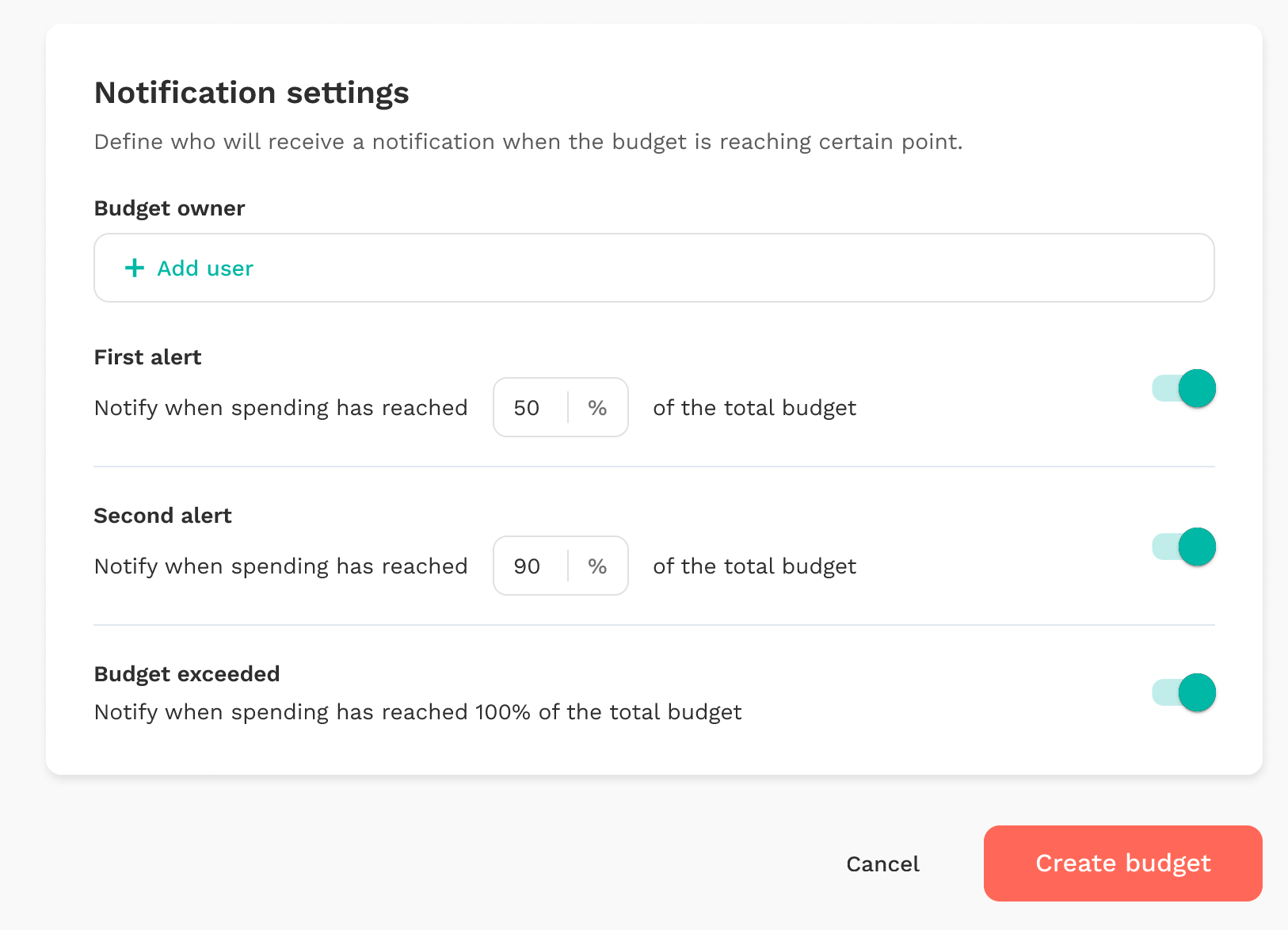
- Budget owners
Assign the people who receive email alerts when spending thresholds are reached. You can only assign managers or admins. Note that admins will always have access to all budgets, but they will not receive any alerts, unless they are assigned as the budget owner. - Setting up alerts
There are three alert types available that will be sent to all budget owners based on the setup. Note that the % budget exhaustion always resets every cycle.
Alert emails include the budget name, period, total budget amount, current spend, time remaining in the period, and a direct link to the budget detail page.
Example: So in this example above,
Once saved, the report will be generated for every month. The 20k budget will be reset for every month budget and can be adjusted per month if needed. |
You can also see how it works from this interactive demo
3. Understanding the budget report view
3.1 The budget report widget
Click on any budget name from the Budget management page to open its detail view.
The chart at the top of the detail page shows your budget amount (in orange) against actual spend (in teal) over the budget's active period. The resolution of the chart adapts to your budget cycle:
- Monthly budgets — displayed per month
- Quarterly budgets — displayed per quarter
- Yearly budgets — displayed per month within the year
- One-off budgets — displayed dynamically based on the date range (per day for short periods, per month for longer ones)
Use the period tabs or cycle picker above the chart to navigate between different months or quarters.
3.2 Understanding the transactions table
Below the chart, you'll find a table listing all bookings and transactions matched to this budget for the selected period. For each transaction you can see:
- Payment date and booking ID
- Booking description (e.g. flight route or hotel name)
- Trip dates and booking amount
- Invoice number (with download link)
You can filter the table by date range or booking type, and export the data as a CSV file for finance reporting.
On the right-hand side, you'll see a usage breakdown by booking category (Flight, Hotel, and Others) alongside the overall usage bar showing the percentage of the budget spent.
4. How to Edit or Change a Budget
4.1 Changing the default budget settings
If needed you can always adjust the following components of a budget:
- Budget name / description
- Filter criteria (custom fields, invoice profile)
- Default budget amount
- Budget owners and notification settings
Note: The budget cycle type and allocation method cannot be changed after a budget is created.
When you save changes to a global configuration, all related transactions will then be recalculated, which may take a moment. The budget will be locked for editing until the recalculation is complete.
4.2 Changing the budget amount for a specific cycle
For recurring budgets, you can set a different amount for any individual cycle period without changing the default for all other periods.
- Click Edit budget on the selected cycle.
- Enter the new budget amount and click Save budget. A confirmation prompt will appear asking if you want to recalculate the report immediately.
The overridden cycle amount will remain fixed even if you later change the global default.
4.3 Archiving a budget
If a budget is no longer needed, you can archive it from the Budget management page.
- Archived budgets are moved to the Archived tab and are excluded from the active list by default.
- All historical spend data and reports are retained and remain accessible.
- Archived budgets will no longer trigger alerts.
- Archiving is permanent and cannot be undone.