In this article:
1. Getting started
2. Policy options & out-of-policy rules
3. Assigning policies to travellers and groups
1. Getting started
Policies are a bundled set of rules that define how your travellers can search and book trips — covering what they can spend, which options require approval, and which are hidden from search entirely. A well-designed travel policy balances cost control with traveller well-being.
💡 Note: Only super-admins can create and edit policies in your organisation.
1.1 Before you begin
Before setting up a policy, make sure the following are in place:
- Groups and managers: At least one group exists with users added and managers assigned. Without a manager, booking requests cannot be approved.
- Planned policy structure: Decide whether you need one global policy or separate policies for different teams and seniority levels.
- Traveller assignments: Have your target users or groups ready to assign. Once assigned to a group, every traveller in that group automatically follows the policy when booking.
To create or edit a policy, go to Travel Ops → Travel Policies and click Add to create a new policy, or click an existing policy name to edit it.
2. Policy options
How approvals and "out-of-policy" shows up in the booking
A policy controls what your travellers see and can book. Some settings affect the approval workflow; others act as filters that prevent certain flights from appearing in search results at all.
Out-of-policy flags during booking: when Always require approval is turned off, any booking that requires approval (crosses a threshold) will show up as "out of policy" when making a booking.
The same information will be available in the approval email, as well as on the approvals page.
2.1 Always require approval
When enabled, travellers cannot book directly. Every selection triggers an approval request to their manager.
- Flagging bookings as "out of policy": Ticking Always require approval does not disable rule thresholds. Instead, fields remain editable and are relabelled from "Requires approval above" to Out of policy above (or "Mark as out of policy for...").
- In policy bookings: If a booking meets all rules, it goes to the manager with a neutral "Approval required (Within policy)" note, without triggering an out-of-policy pop-up or warning banner.
Applies to: Flights, Accommodations, Trains.
💡 Note: Flight exceptions cannot be created if Always require approval is turned on for the main policy.
2.2 Fare limits and budgets
Determine budget ceilings for flights (total fare), accommodation (nightly room rate), and trains (total fare). Crossing these thresholds flags the booking as out of policy and routes it for approval.
Choose one of three approaches:
- Dynamic (based on Price to Beat): Calculates a budget ceiling in real time based on the median price or nightly rate of the lowest logical options available for that specific search. You define thresholds as percentages above that median.
- Requires approval above / Out of policy above: Percentage above the Price to Beat that flags the booking as out of policy and triggers manager approval.
- Hide from search above: Fares/rates above this percentage are hidden from search entirely. Options between the out-of-policy threshold and hide threshold remain bookable but are flagged.
- Fixed: Sets a specific monetary cap. Any fare or nightly rate above this amount is flagged as out of policy and requires approval, or is hidden from search.
- Flight calculation: Return flights use the full entered amount; one-way flights use half the entered amount as the effective limit.
- Both (combined dynamic and fixed): Combines a dynamic percentage and a fixed monetary cap on the same threshold. Under Apply rules when, choose:
- Lower limit is reached: The stricter of the two thresholds applies (whichever is reached first).
- Upper limit is reached: The more permissive of the two thresholds applies (whichever is reached last).
Applies to: Flights, Accommodations, Trains.
2.3 Booking window
Requires travellers to book a minimum number of days before departure or check-in. Bookings made inside this window are flagged as out of policy and require manager approval, even if the price is within budget.
Applies to: Flights, Accommodations.
2.4 Cabin and seat class
Restricts which classes travellers can select and book. You can set classes to be within policy, out of policy (requiring approval), or hidden from search:
- Flights: Economy, Premium Economy, Business, First Class.
- Trains: Standard, First Class / Business seats.
Applies to: Flights, Trains.
2.5 Airline controls
- Airline type: Choose whether budget airlines (low-cost carriers) are included, excluded, or flagged as out of policy requiring approval.
- Exclude airlines: Prevent specific airlines from appearing in search results entirely.
Applies to: Flights only.
2.6 Booking duration (accommodations only)
Sets a maximum number of consecutive nights that can be booked within policy. Any stay exceeding this limit is flagged as out of policy and requires manager approval before confirmation.
2.7 Nights of the week (accommodations only)
Enforces approval and out-of-policy flags for bookings that include specific days of the week (e.g., flagging weekend stays on Saturday or Sunday nights).
2.8 Accommodation type (accommodations only)
Restricts or hides specific property types from search results (such as holiday homes, apartments, or guesthouses) if travellers must stay in traditional hotels only.
2.9 Review scores and star ratings (accommodations only)
- Review score: Restricts or flags accommodations falling below a minimum guest review score.
- Hotel star ratings: Restricts or flags results based on the property’s star rating. (Review scores are recommended as a more reliable quality indicator across international markets).
2.10 Policy exceptions
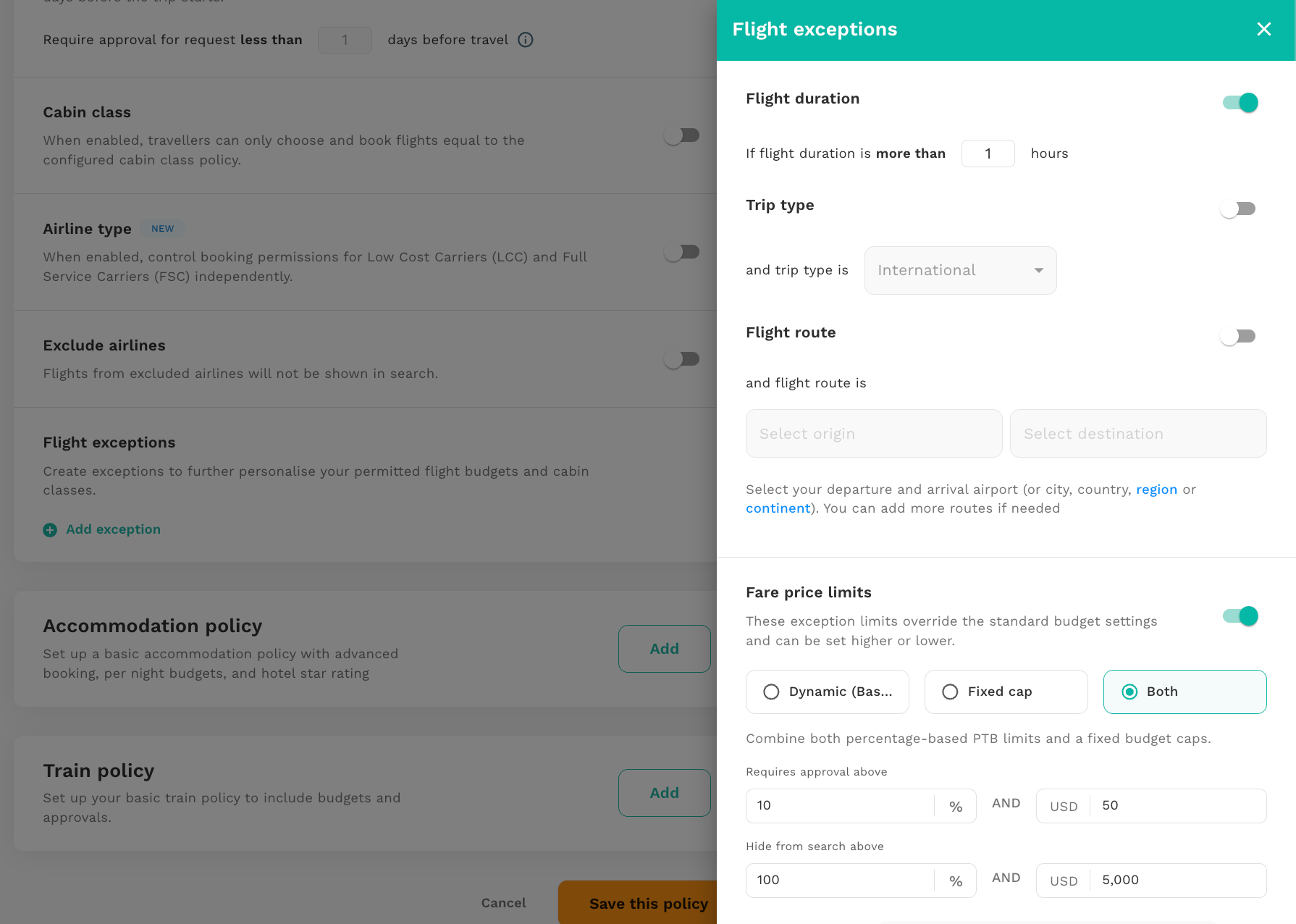
Exceptions override the main policy rules when specific conditions are met:
- Flight exceptions: Triggered by flight duration (e.g., permitting Business class after 6+ hours of travel), route, or international trip types.
- Accommodation exceptions: Triggered by specific cities or countries (e.g., applying a fixed nightly cap for expensive destinations while keeping dynamic limits globally).
Exceptions can use Dynamic, Fixed, or Both fare limit settings. If multiple exceptions overlap, the first matching exception in the list is applied.
Applies to: Flights, Accommodations.
3. Assigning policies to travellers and groups
A policy has no effect until it is assigned. You can assign policies to individual travellers or entire groups.
To assign a policy:
- Go to Travel Ops → Travel Policies.
- Click the three-dot menu next to the policy.
- Select Add users or groups.
Setting a default policy
Enable the Set as default policy toggle within a policy to automatically apply it to any user without an explicit group or individual policy assignment. Only one policy can be the default at a time.
💡 Note: A user can only be assigned to one policy at a time. If a user belongs to an assigned group, they cannot be individually assigned to a different policy without first being reassigned to another group.
Related articles
- What are the different approval settings
- More on how approval works during bookings
- How to setup rule-based or multi-approval workflows